



To cover up your tripod in your 360º images you can upload a “Nadir” to the tour. it will then automatically add the Nadir to your images and cover up the floor nicely.
Here’s how to do this:
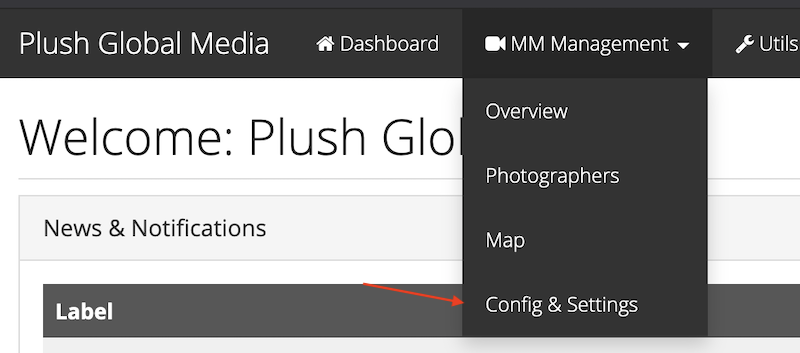
Go to “Config & Settings”
Click on the tab “Vts”

Click on “Add/Edit Logo” under the section “Nadir Logo”

The recommended logo size depends on the tripod & camera you use, but for Ricoh Theta / insta etc. it should be around 300 pixels large. Make the logo circular and upload as PNG with a transparent background for the best results.
Drag your logo into the box

Click “Upload All”

Click on “original” under your uploaded image

If you see that your image has a background, you probably didn’t click “original” but “Thumb” or “large”. Make sure you have selected “original” so the image does not have a background.
Now all your tours have the same Nadir Logo :)