



We’re thrilled to unveil the beta testing phase of our all-new V2 virtual tour player. This update will introduce fresh themes that promise to give your tours a modernised look and feel, marking the first of many exciting rollouts in anticipation of the brand new editor launch later this year. The option to switch to the V2 player is currently in Beta testing and available to a select number of accounts, if you would like to be added to the waiting list for V2 access, you can sign up below and we will keep you updated!
Explore New Player Themes
Introducing the V2 virtual tour player, which allows you to customise your tour’s appearance with a selection of theme styles. From sleek, modernized base themes to upcoming stylish options, V2 lets you tailor your tour’s visual presentation effortlessly.
Click here to see the new player in action!

How to Switch to V2
Switching to the V2 virtual tour player is simple. Follow our step-by-step guide to seamlessly transition your tours.
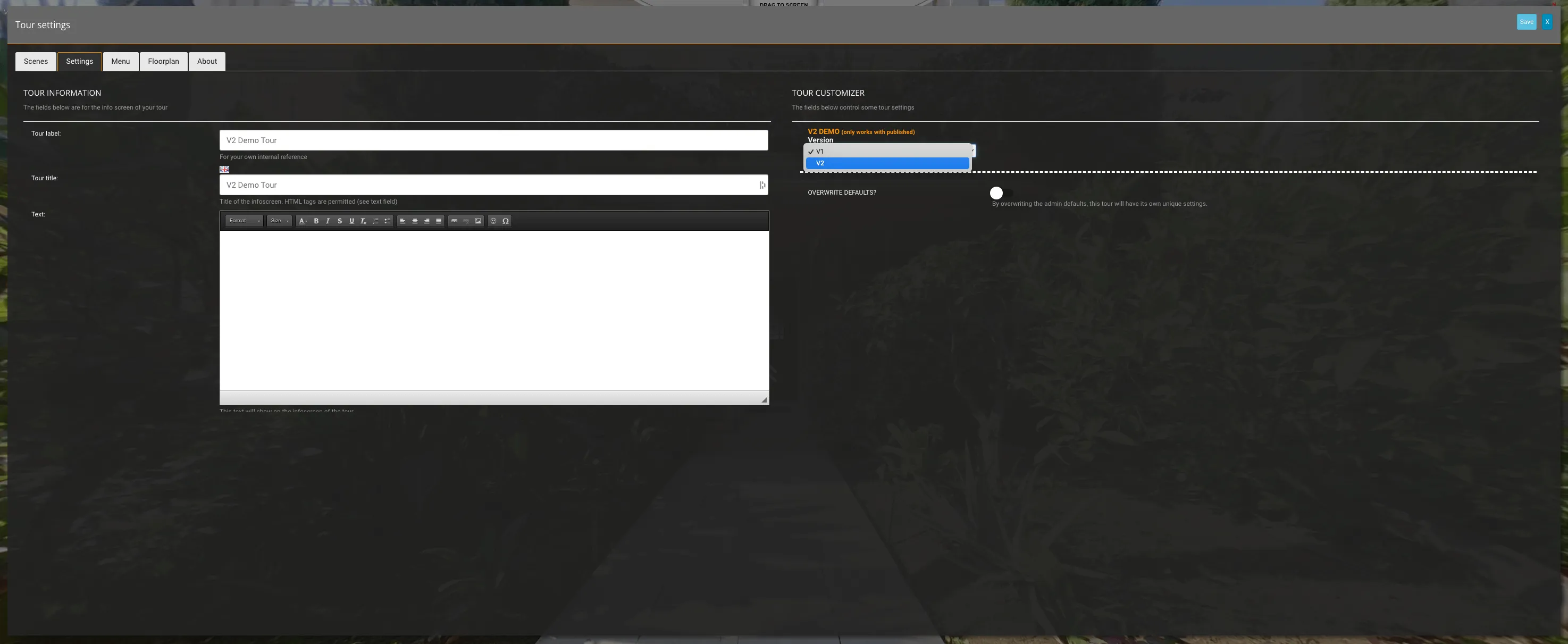
You can activate the V2 player for individual tours inside the tour editor. In the “Settings” tab of your tour settings there will be an option called “V2 DEMO” in the Tour Customizer section. Here you are able to switch between the current V1 player and the new V2 version.
Player Theme
Once you select the V2 version you can select the theme you would like for the player, more themes will be introduced in the next few months!

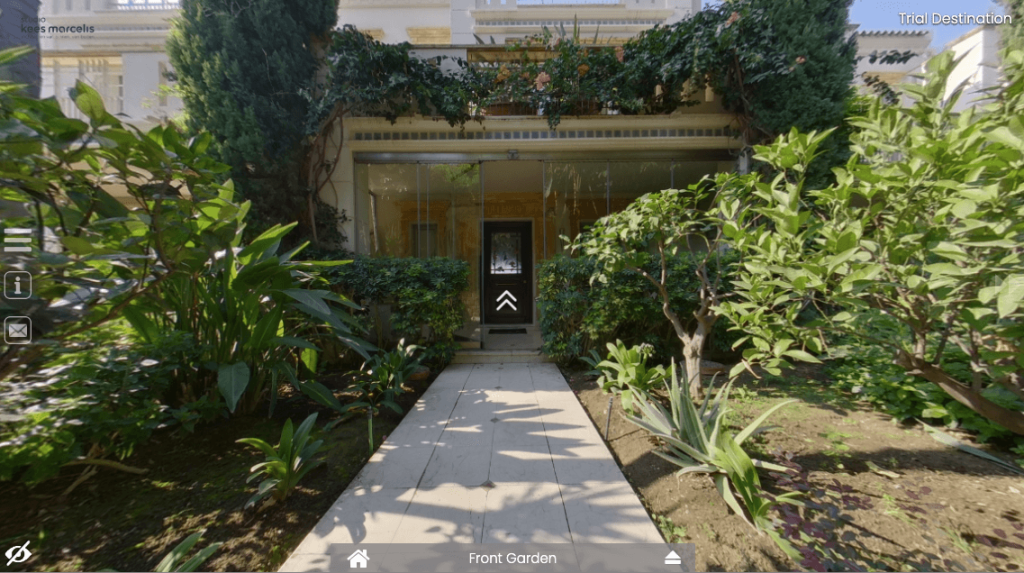
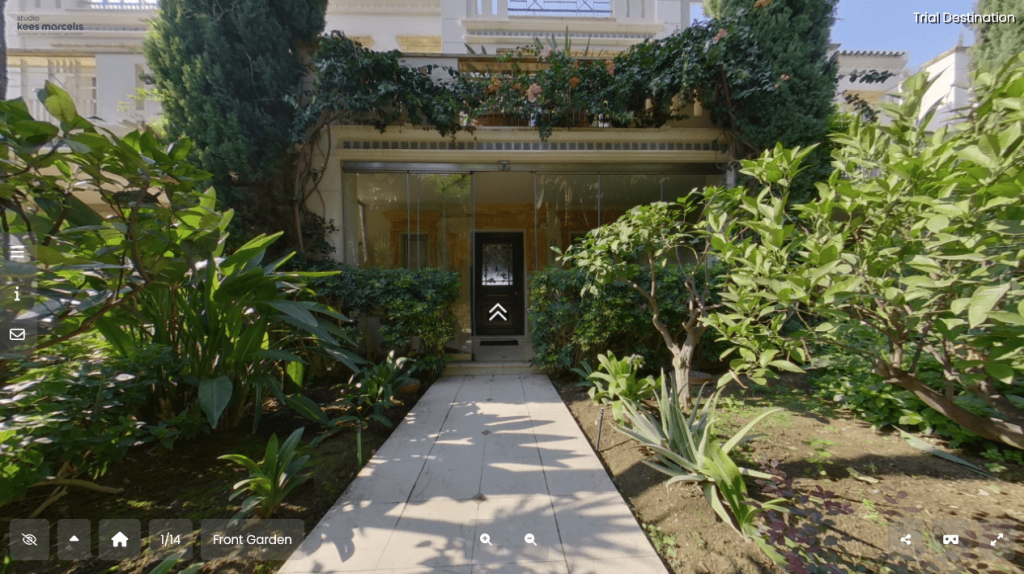
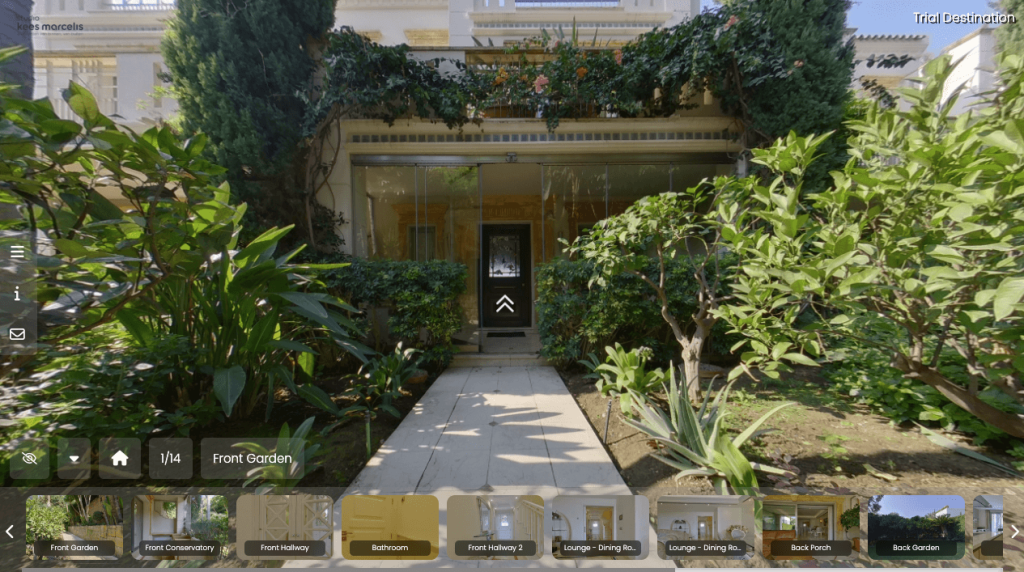
The Base player theme is similar to the current default player, the Modern theme is the first new Theme design option available in the new player. See below to see a comparison of the two:
Base(Like V1) Player Theme
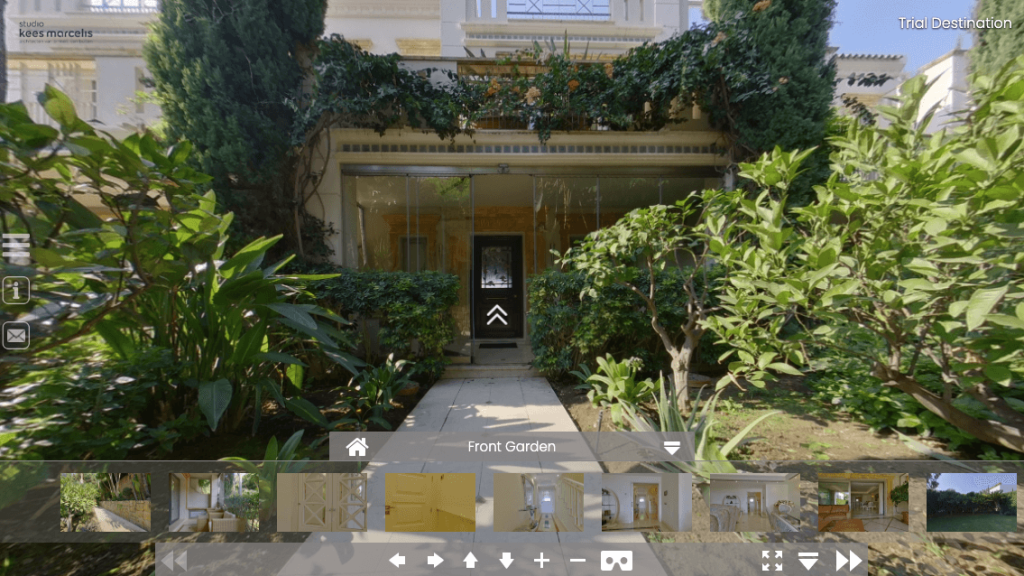
Modern Player Theme
Hotspot Hover Setting

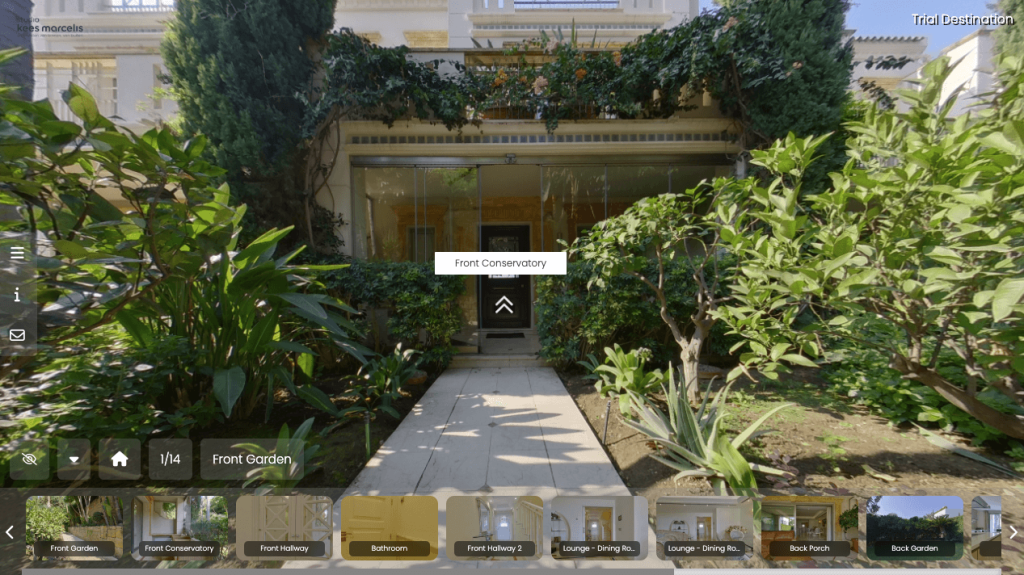
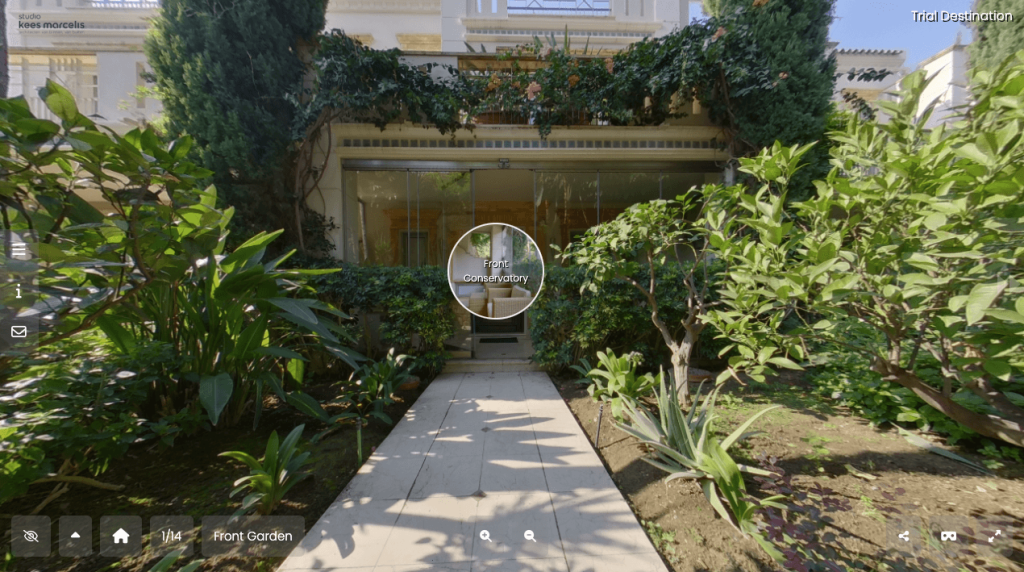
The final setting is for Hotspots, this refers to the interactivity when hovering over directional hotspots. You can choose to stick with the current default or the new thumbnail popup. See below to see a comparison:
Default Hotspot Hover
New Thumbnail Hover
Player Colours
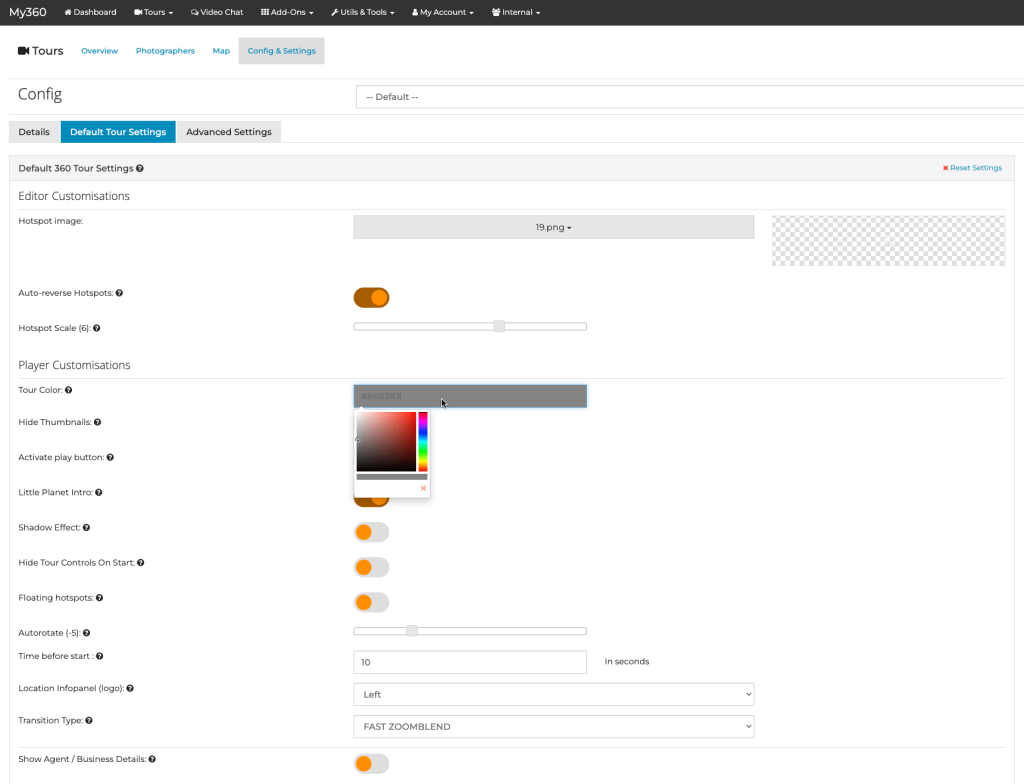
The player colour settings work just the same as the current player. Your can choose to stick with your default Tour colour or overwrite the defaults for each individual tour.
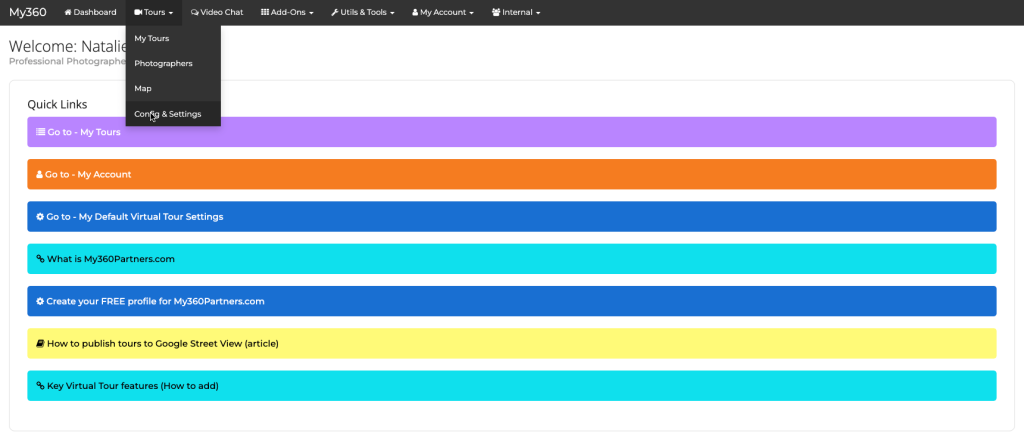
To recap, your default tour colours are set from your dashboard, go to the Settings & Config page via the My Tours tab. Here you can select a default tour colour that will show on all tours unless this has been overwritten on an individual tour.
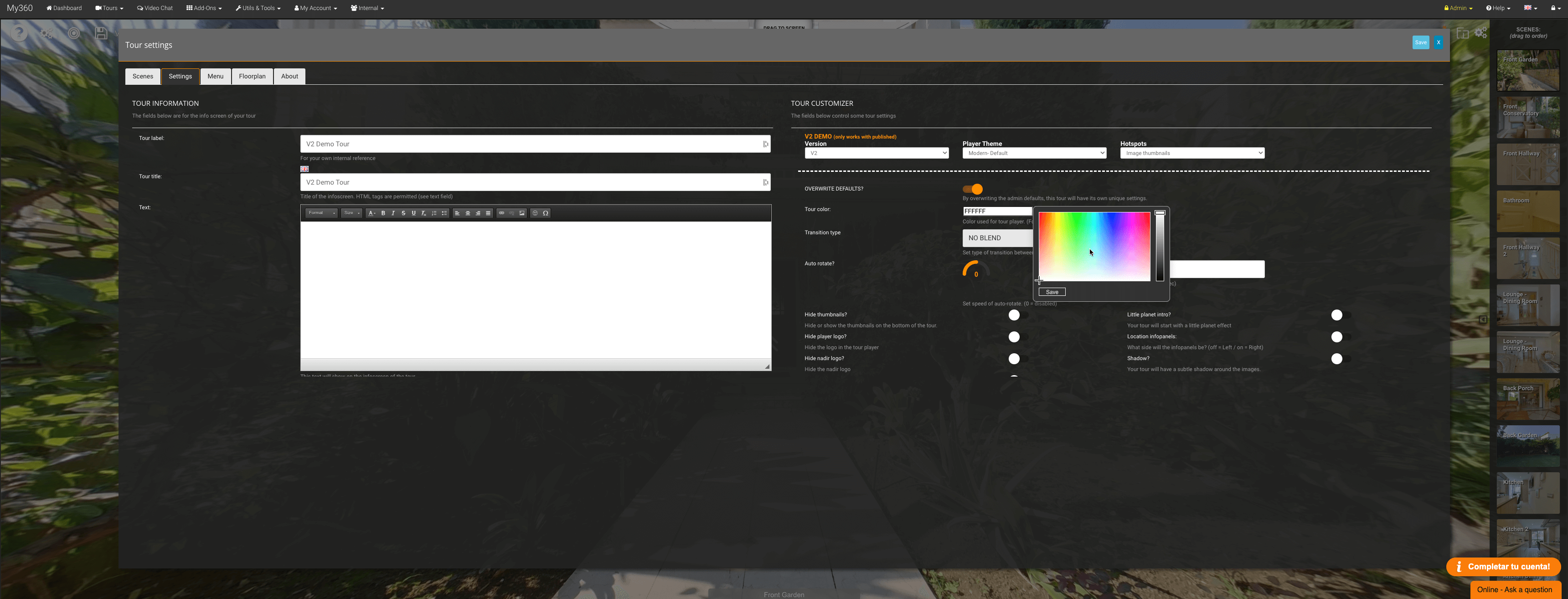
To overwrite the tour colour for an individual tour you can do this by activating the overwrite defaults button on the tour settings page inside the editor.
Requesting Access to V2 Beta
Excited to get your hands on the V2 player? Sign up now to the waiting list for early access to our beta testing phase. Simply leave us your details, and we’ll keep you in the loop on all things V2 player and editor updates.
Your Feedback Matters
During beta testing for this new player update your feedback is invaluable to us, with a new fresh theme (and more to come!) to customise your tour’s appearance, we’re eager to hear your feedback to refine and enhance this experience.
Whether you encounter a bug or have ideas for improvement, we’re here to listen and make adjustments before the full rollout.
This player update is the first of big changes to come for My360 Tours, with the launch of our new editor coming later this year including some exciting new features, we cant wait to share with you everything we have been working on.
To follow the journey and keep up to date with the new updates that are on the way, make sure to follow us on social media for all the latest news and announcements.
Thank you for being part of our journey to redefine virtual tours with My360.